 ChessPigeon
How to Review a Chess Game with Your Coach
A coach is most useful when you arrive with a real game and real questions. This guide shows how a student and coach can prepare, review a game together on a shared ChessPigeon board and keep the result.
Before the lesson: one game, three questions
Choose one recent game, ideally a loss or a game where you felt lost. Before the lesson, play through it on your own and write down two or three questions, each tied to a specific move:
- a moment where you didn't know what to do;
- a move you played on instinct and want to understand;
- a reply from your opponent that surprised you.
Resist running the engine first. Your coach learns more from how you thought during the game than from what Stockfish says afterwards. If you like, write the questions into the PGN as comments before you send it to your coach, as in the example below.
The example game
Here is a short example game with the student's questions written in as PGN comments. It follows a famous trap pattern known as Légal's Mate.
[Event "Lesson example"]
[Site "ChessPigeon guide"]
[White "Student"]
[Black "Opponent"]
[Result "1-0"]

1. e4 e5 2. Nf3 d6 3. Bc4 Bg4 4. Nc3 g6
{Coach question: what is Black's last move weakening?}
5. Nxe5 {Student: I saw my knight was pinned to the queen but played on instinct.}
5... Bxd1 {Black takes the queen. Was this the best reply?}
6. Bxf7+ Ke7 7. Nd5# 1-0
Students can preview the game before the lesson: Open the lesson game in ChessPigeon (opens in a new tab)
These are the points a coach might draw out:
- A pin to the queen can be broken. Only a pin to the king makes a move illegal. Here the knight is free to move, because the student is willing to give up the queen.
- Taking the queen loses. After 5... Bxd1?? 6. Bxf7+, Black's only legal move is 6... Ke7, and 7. Nd5# is checkmate. Three minor pieces deliver mate.
- The calm reply is better. After 5... dxe5 6. Qxg4, White wins the bishop back and keeps the pawn from e5. Black is a pawn down, but not mated.
Set up the lesson
Coach
- Open ChessPigeon and select Classroom in the sidebar, or press C.
- Enter a name under Your name and select Create classroom.
- Use the copy button (Copy invite link) and send the link to your student privately.
- Load the student's game with Import games, the first button in the Classroom panel: paste the PGN or use the student's Chess.com username.
Student
- Open the invitation link.
- Enter your name and select Join classroom. You appear on the coach's board straight away.
Students join as Watching. The coach can change each participant to White, Black or Full board from the participant list. Full board lets a student navigate the game, try variations and import games too.
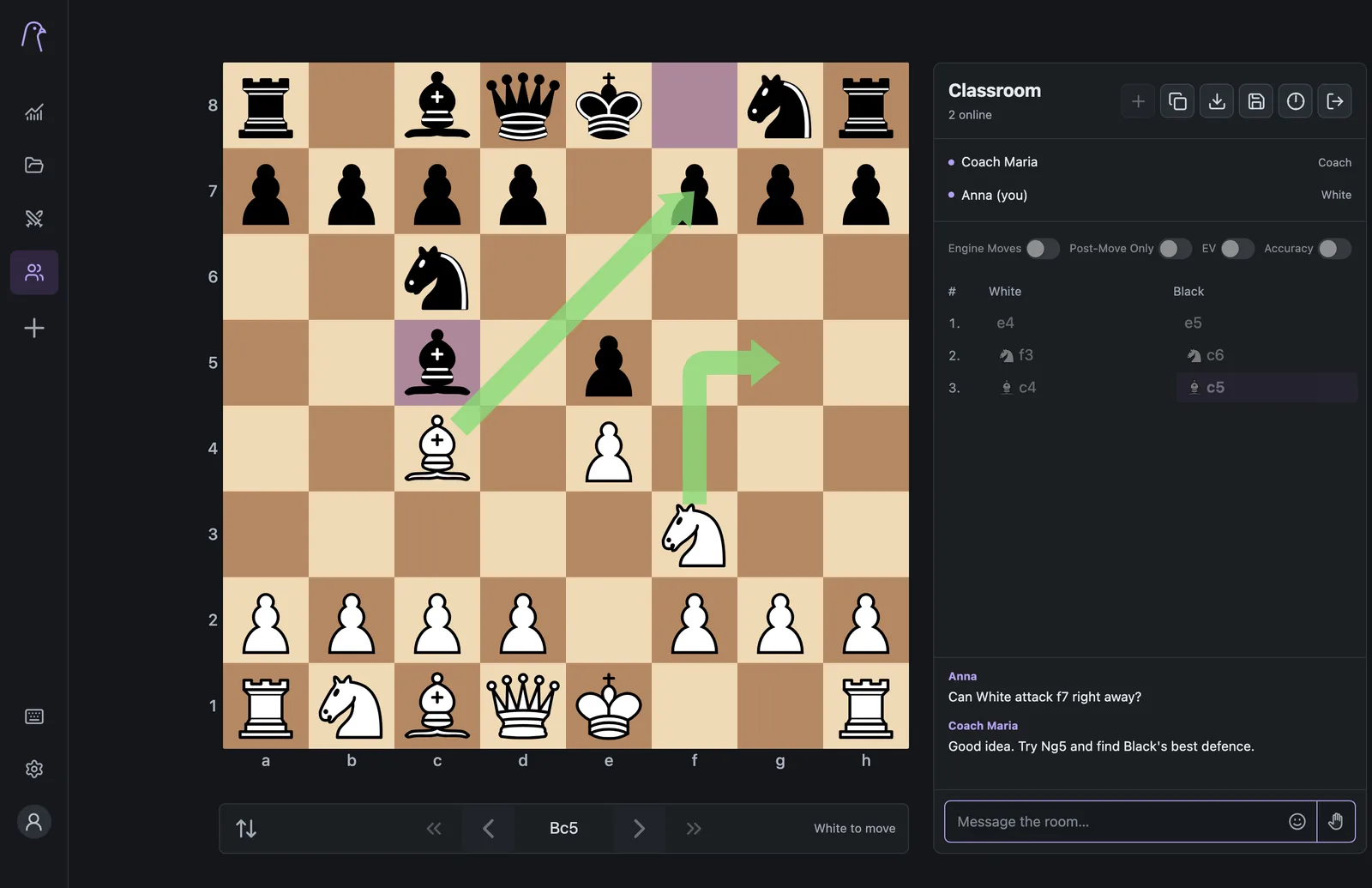
Work through the game together
Start with the student's first question, not with the engine. A rhythm that works well:
- Go to the moment. Only participants with full board control can move through the game, so the coach (or a student with Full board) navigates while everyone else follows.
- Let the student explain. Ask what they saw and what they were worried about, in their own words.
- Show candidate moves with arrows. Hold the right mouse button and drag to draw a shared arrow; right-click a square to highlight it.
- Test the ideas. Play the candidates on the board. A move played from an earlier position becomes a variation, so the original game stays intact.
- Check with the engine last. The coach can switch on EV, Engine Moves, Accuracy or Post-Move Only when the discussion is done.
| Action | Result |
|---|---|
| Right-drag | Draw an arrow |
| Right-drag with Shift, Ctrl/⌘ or Alt | Red, blue or yellow arrow |
| Right-click a square | Highlight it |
| Middle-click | Remove the latest drawing |
Drawing needs a mouse or trackpad and is available to the coach and to students with White, Black or Full board. Watching participants can follow along, chat, send an emoji or use Raise hand to ask for the coach's attention.
Keep what you learned
- Save the games. Save lesson games to library saves every game from the lesson to your own library in this browser. Everyone can use it once all lesson games have legal positions. Download PGN remains available for incomplete setups.
- Download a copy. Download PGN exports the lesson games as a file.
- End the lesson. The coach selects End lesson, then End lesson for everyone. Games and drawings stay available to save or download, and an Open in Analysis button appears so you can review alone.
Then write down one lesson from the session, just as you would in a solo review.
Good to know
- The link is the key. Anyone with the invitation link can join, and names aren't verified. Share it privately.
- Keep the tab open. Your place in the lesson belongs to your browser tab. Reloading keeps it, but a new tab or device joins as a new participant, and the coach role can't be moved to another device.
- Lessons last up to six hours from creation. The lesson timer is only a reminder and doesn't close the lesson.
- Limits. A lesson can hold up to 50 participants, and up to 50 games and 500 KB of PGN.