 ChessPigeon
Playing a Game and Reviewing It
Start a game
- Open Play in the sidebar, or press P. The New game setup opens.
- Choose Computer or Play a friend.
- Pick a speed and a time control, and for the computer a difficulty level.
- Choose your colour with the switch: White, Random (the default) or Black.
- Select Start.
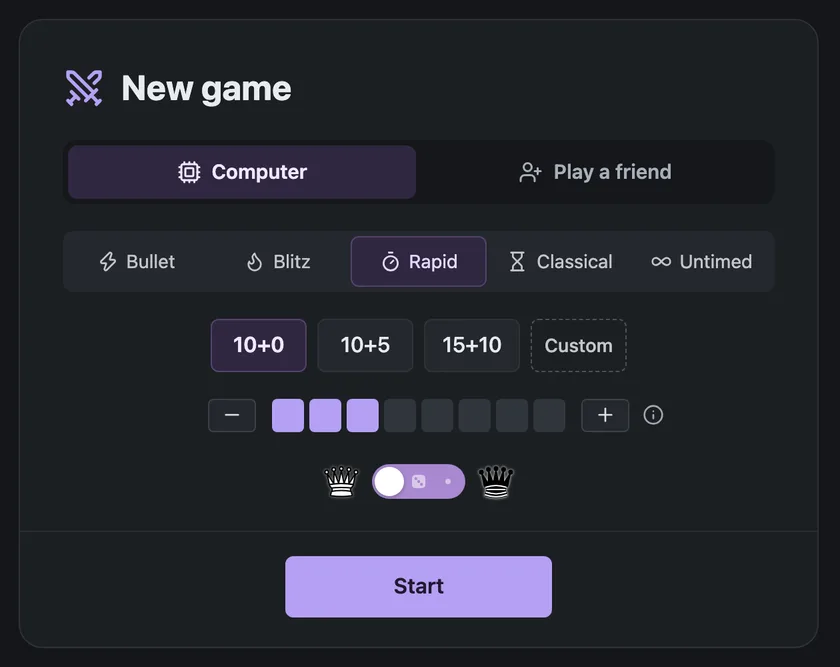
ChessPigeon remembers your last setup on this device. Games against the computer run entirely in your browser.
Computer difficulty
Each level is described as a playing style rather than a rating. Lower levels deliberately make mistakes; Maximum makes none on purpose but can still miss better moves.
| Level | Name | Playing style |
|---|---|---|
| 1 | Beginner | Very forgiving |
| 2 | Easy | Frequent mistakes |
| 3 | Casual | Misses threats |
| 4 | Intermediate | Requires planning |
| 5 | Challenging | Fewer chances |
| 6 | Very hard | Accurate play |
| 7 | Expert | Few deliberate mistakes |
| 8 | Maximum | No deliberate mistakes |
Select the info button beside the level selector (About Stockfish difficulty) in the app for the same explanation. These are playing styles, not Elo ratings.
Time controls
| Speed | Presets (minutes + seconds per move) |
|---|---|
| Bullet | 1+0, 1+1, 2+1 |
| Blitz | 3+0, 3+2, 5+0, 5+3 |
| Rapid | 10+0, 10+5, 15+10 |
| Classical | 30+0, 30+20 |
| Untimed | No clock |
Select Custom to set your own time (up to 180 minutes) and increment (up to 60 seconds).
Play a friend
- Choose Play a friend, set the time control and colour, and select Start.
- Copy the invitation link from the Waiting for your friend card and send it to your friend.
- The game starts as soon as they open the link.
During the game
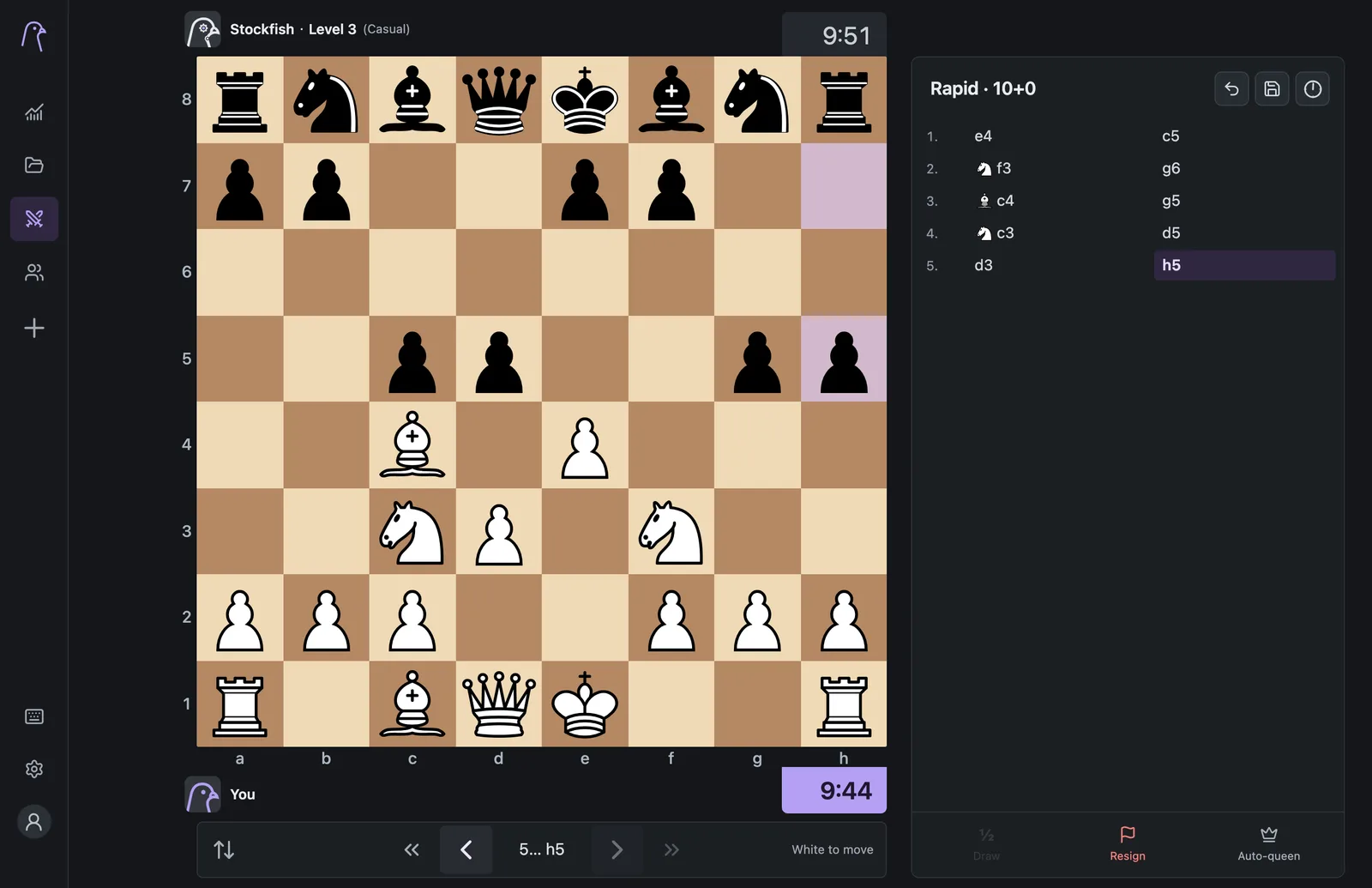
- Back (computer games only): takes back your last move and Stockfish's reply. You can press it repeatedly, and it also reopens a finished computer game.
- Draw offers a draw in games with a friend. Stockfish doesn't accept draw offers. When a draw by repetition or the fifty-move rule is available, the button becomes Claim draw.
- Abort is available before both sides have moved; after that the button is Resign. Both ask you to confirm.
- Auto-queen promotes pawns to a queen without asking.
- Premoves: queue up to five moves during your opponent's turn. The queue shows how many are waiting; choose Cancel all to clear them. In Settings → Premoves, turn off Multiple premoves to queue only one, or disable premoves entirely.
If you leave Play for another part of the app during a live game, ChessPigeon asks whether to abort or resign first. In online games, a player whose connection drops gets a short time to reconnect, depending on the game speed.
Save and review the game
- Select the save icon at any point. During the game it saves the moves so far; afterwards it saves the finished game to My games.
- When the game ends, select Open in Analysis.
- The game opens in Analysis with both players' names, the result and the clock times, and its review starts automatically.
Not sure what the labels mean? Read Understanding review.
Talking pigeons and status eyes
In computer games, your pigeon opponent comments on the game in purple speech bubbles. Click a bubble to dismiss it, or turn off Pigeons can talk under Settings → Play. In games with a friend, Pigeon status eyes warn you when your opponent seems to be away: the eye blinks yellow, then red.